
Two-factor authentication (2FA) adds an extra verification step when logging in to FrontDesk Master. You can enable it for your staff directly in the system, without contacting support.
How do I enable 2FA?
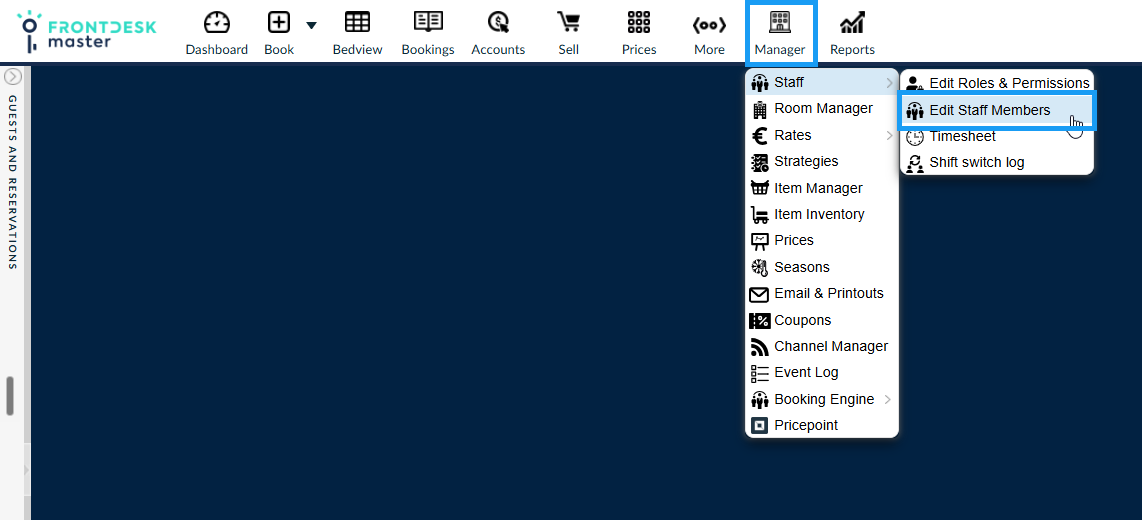
- Open Manager (logged in as property admin) → Staff → Edit Staff Members.
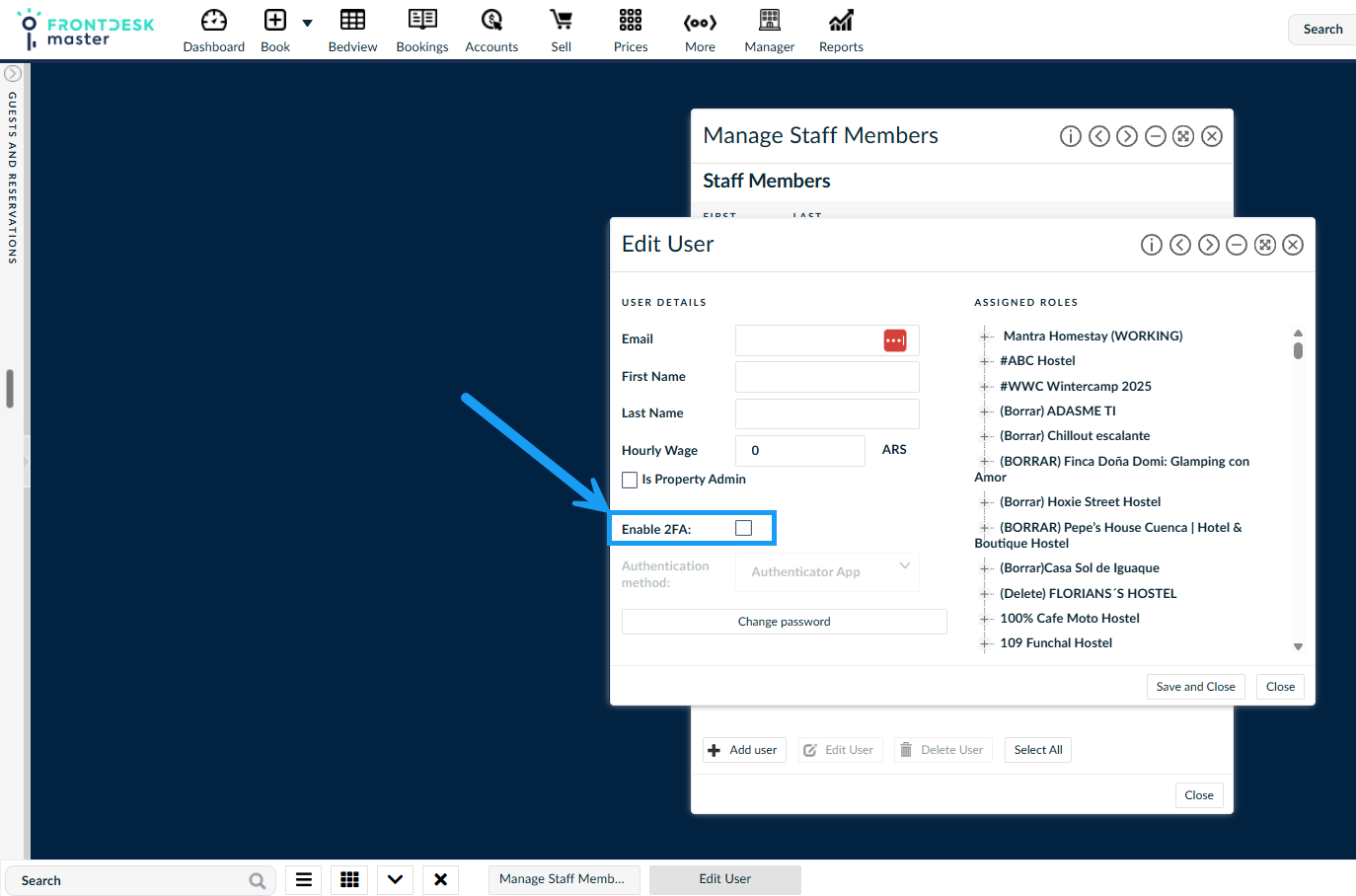
- Select the staff member and click Edit User.
- Tick Enable 2FA.
- Select the Authentication method:
- Authenticator App, such as Google Authenticator or Authy.
- Email.
- Click Save and Close.
Repeat these steps for each staff member who needs 2FA enabled. Users will be prompted to complete the authentication steps when logging in.
What if I cannot access these settings?
Ask your property administrator to enable 2FA for your user. If you need assistance, contact support@frontdeskmaster.com.